
Why Choose a 4x4 HDMI Matrix Switcher?
A 4x4 Hdmi Matrix Switcher gives four source devices the flexibility to reach four displays, with each output routed independently. A game console can appear on the living-room screen while a laptop feeds a meeting-room projector. No cable swapping. No crowded receiver stack. The setup can make a busy control room feel much simpler.
The right choice depends on more than the number of ports. Check supported resolution and refresh rates, HDCP compatibility, EDID management, audio handling, and control options. A matrix that lists “4K” may still differ in bandwidth or feature support. Read the specifications closely. Test the exact source-and-display combination when possible. Small compatibility details can cause large headaches.
For transparency, the following quotation is original illustrative wording from a fictional composite AV systems specialist, Maya Chen—not a verified statement from a real, named expert: “A matrix earns its place when every screen can show the right source without disrupting the others.” That principle captures the practical value of this equipment. Still, a matrix is not automatically the best answer. A small room with one display may need only a simple switch. But when people share screens across several rooms, independent routing can save time and reduce visible cable clutter. Consider who will operate the system, how often sources change, and what future devices may require. The best installation is not the most complicated one. It is the one people can use reliably, even on a rushed Monday morning.
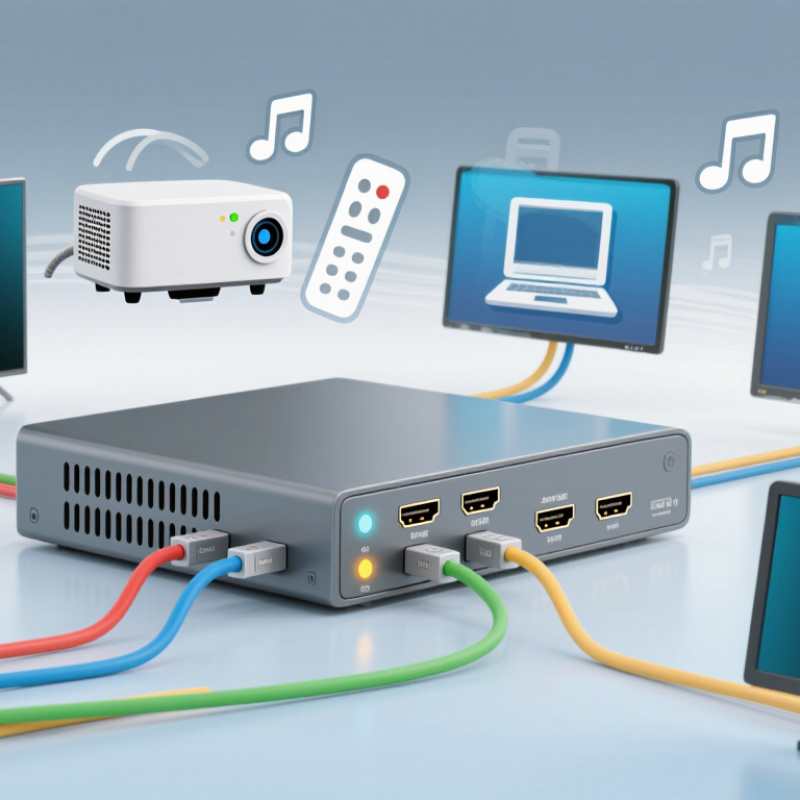
What a 4x4 HDMI Matrix Switcher Is
A 4x4 HDMI matrix switcher connects four HDMI sources to four displays. Sources might include a media player, computer, or game console. Displays could be televisions or projectors in different rooms. The matrix lets each output select an input independently. One screen can show a presentation while another plays a video. Two displays can also show the same source. It is more flexible than a basic splitter, which usually sends one signal to several displays.
In practice, a technician connects each source and display to the labeled ports, then chooses routes using front-panel buttons, a remote, or a control interface. The device does not create sharper images; it manages where signals go.
Check its supported resolution, refresh rate, audio formats, and HDCP compatibility against the connected equipment. Cable length matters, too. A long cable run may need suitable signal support. Small details count.
A common planning mistake is assuming every HDMI device behaves identically. It does not. Some systems need careful EDID settings so a source and display agree on a usable format. That part can feel fiddly, even in a simple room. Test each source with each display before installation, and document the final routing.
How a 4x4 HDMI Matrix Routes Sources to Displays
A 4x4 HDMI matrix switcher connects up to four source devices to four displays, with each output routed independently. A game console can feed the living-room screen while a media player sends video to a conference-room display. Unlike a basic splitter, the matrix can send different sources to different screens at the same time.
Routing is usually controlled with front-panel buttons, a remote, or a control interface. For example, a laptop connected to input one could appear on displays one and three, while a camera on input two appears on display four.
That matters. In a small meeting room, this can avoid moving cables whenever presenters change. Before installation, check each display’s supported resolution and refresh rate. The matrix must also handle the source devices’ signal requirements; supported formats vary by model.
Not always. A screen may go blank if its settings or cable run are incompatible. Labeling inputs and testing each route makes troubleshooting easier, though the setup can still take a little patience.
Key Benefits of Independent Audio and Video Routing
A 4x4 HDMI matrix switcher connects up to four sources with four displays, but its real value can be the freedom to route audio and video separately. With audio breakaway support, a screen can show a presentation laptop while its speakers receive sound from a separate media player. Each output can be configured for a different room or use.
Picture a training space with a presenter’s laptop, a room camera, and two displays. The laptop’s video can appear on both screens, while audio goes to the room’s sound system instead of each display. In a hotel lobby, signage can stay on screen while a separate audio feed plays through ceiling speakers. That matters. Staff can change routes without unplugging cables or moving equipment.
Check the switcher’s actual routing options before choosing one. Some models switch audio only with its matching video; others support independent audio extraction or routing. Output formats, control methods, and EDID settings can also affect setup. A technically capable unit may still need careful configuration. It is not magic. Test each source and display together, especially when audio and video come from different devices. A short test can reveal a mismatch before the room fills.
Common Applications in Homes and Commercial Spaces
A 4x4 HDMI matrix switcher connects up to four video sources to four displays, with routing options depending on the model. In a home, a game console, streaming device, cable receiver, and Blu-ray player can share televisions in different rooms. One screen might show a film while another displays a game. No cable swapping.
This setup can suit a living room, media room, or small home with a bedroom display. It keeps source devices together in a cabinet, reducing clutter near each television. Before choosing a unit, check that it supports the resolution, audio formats, and copy-protection standards used by your equipment. Long cable runs may need suitable signal extension. Small details matter.
Commercial spaces use matrix switchers in conference rooms, training centers, restaurants, and retail displays. A meeting presenter can send a laptop image to several screens, while staff route another source to a separate display. In a restaurant, different areas can show different programs when the system allows independent routing. For digital signage, several screens can share content or show separate feeds. That flexibility is useful, but it can add setup work. Labeling inputs and outputs clearly helps prevent mistakes, especially when staff change often. Check the room’s actual needs; four outputs may be more than a small space requires.
Factors to Consider When Choosing a 4x4 HDMI Matrix Switcher
A 4x4 HDMI matrix switcher can send any of four sources to any of four displays, but the right model depends on the whole signal chain. Check the resolution and refresh rate required at each screen, including whether you need 4K at 60 Hz, HDR, or particular color formats. The switcher, source devices, displays, and cables must all support the chosen format. One weak link can mean a blank screen or a reduced picture quality. Small details matter.
Confirm support for HDCP and EDID, which help devices negotiate protected content and compatible display settings. If a laptop and a media player behave differently, flexible EDID controls can make setup easier. Check audio routing, too: some installations need sound to follow the picture, while others send it to a separate amplifier. Measure cable runs before buying. Long or poorly rated HDMI cables can cause intermittent dropouts, even when the matrix itself is suitable.
Finally, consider how the system will be controlled. Front-panel buttons may work in a small meeting room; remote, serial, or network control may suit a rack or shared space better. A common planning mistake is choosing by port count alone. Four inputs and four outputs sound right, but verify the actual routing modes and control needs. Leave room for future sources if possible. That spare capacity can be useful.
Why Choose a 4x4 HDMI Matrix Switcher? - Factors to Consider When Choosing a 4x4 HDMI Matrix Switcher
| Factor | What to Check | Example Specification or Capability | Why It Matters |
|---|---|---|---|
| Input and output count | Confirm that four source devices and four displays can be connected at the same time. | 4 HDMI inputs × 4 HDMI outputs | A matrix can route any supported input to any output, often allowing different displays to show different sources simultaneously. |
| Video resolution and refresh rate | Match the matrix’s supported formats to the sources and displays you use. | For example, 4K at 60 Hz; higher refresh rates require compatible equipment throughout the signal chain. | A “4K” label alone does not confirm support for every refresh rate, color format, or HDR mode. |
| HDMI bandwidth | Check the stated bandwidth and the video formats it supports, including color depth and chroma format. | An 18 Gbps link is commonly associated with HDMI 2.0-class 4K/60 formats; requirements vary by format. | Insufficient bandwidth can limit resolution, refresh rate, or color quality. |
| HDCP compatibility | Verify compatibility with the HDCP versions required by your sources and displays. | Check the product documentation for supported HDCP versions and routing behavior. | Content protected by HDCP may not display correctly if any connected part of the system is incompatible. |
| HDR and color formats | Check for the HDR formats, color depth, and chroma sampling needed by your equipment. | Look for explicit support details rather than assuming all HDR formats are included. | Format support affects image quality and depends on the source, matrix, cables, and display. |
| EDID management | Look for EDID copy, preset, or management options if displays have different capabilities. | The matrix may provide selectable EDID settings or read display EDID information. | EDID handling helps sources choose a video format that connected equipment can support. |
| Audio handling | Check supported audio formats and whether the unit offers audio extraction or separate audio routing. | Capabilities vary; confirm support for the specific audio formats and outputs in your setup. | Audio features determine how sound reaches TVs, receivers, or separate audio systems. |
| Control options | Choose the control methods that suit the installation and users. | Common options include front-panel buttons, an IR remote, RS-232, or network control. | Remote or automated control is useful when equipment is installed in a rack or managed by a control system. |
| Cable distance and signal extension | Check the recommended HDMI cable length for your chosen resolution and whether extension is supported. | Longer runs may require suitable active cables or a compatible extender; performance depends on the equipment and installation. | Cable limitations can cause dropouts or prevent a high-resolution signal from reaching a display reliably. |
| Installation and reliability | Consider rack mounting, ventilation, power requirements, and access to connections. | Review dimensions, mounting options, operating conditions, and warranty terms. | A suitable installation improves accessibility and helps prevent heat or cabling issues. |
| Future requirements | Consider planned upgrades to sources, displays, video formats, and control systems. | Choose specifications based on the formats and features you expect to use, not just current connections. | Matching the matrix to likely needs can reduce the chance of an early replacement. |
Specifications vary by model. Confirm supported formats, HDCP behavior, cable requirements, and audio features in the product documentation before purchase.
