
How to Choose the Best Mobile Workstation in 2026
Choosing the best Mobile Workstation in 2026 means balancing portable performance with the realities of daily work. A powerful graphics processor matters, but so do memory, cooling, display quality, and service support. The laptop that renders a complex scene quickly may feel less impressive after hours in a warm meeting room. Small details count: a stable hinge, a readable screen, and ports that connect to your equipment without a bag of adapters.
Industry forecasts help explain the changing priorities. Gartner projected that AI PCs would make up 43% of worldwide PC shipments in 2025, or 114 million units. IDC reported 262.7 million PC shipments in 2024, a 1% year-over-year increase. These figures cover broad PC markets, not mobile workstations alone. Still, they show why buyers should check whether a system’s processor, graphics, and memory suit their actual software—not just a new AI label. At Computex 2023, NVIDIA CEO Jensen Huang said, “The PC is back.” It is a useful signal, not a buying rule. A workstation choice still needs evidence.
This guide will compare GPU and CPU options, memory capacity, screen specifications, battery life, thermals, upgradeability, and warranty coverage. It will also consider how demanding tasks behave away from a desk. A thin chassis can be convenient. Under sustained rendering, it may run hotter or slow down. I would not choose on benchmark numbers alone. The right machine depends on the applications you use, the files you handle, and how often you carry it. Even a careful checklist cannot predict every trade-off; hands-on testing and workload-specific reviews remain valuable.
What Defines a Mobile Workstation in 2026
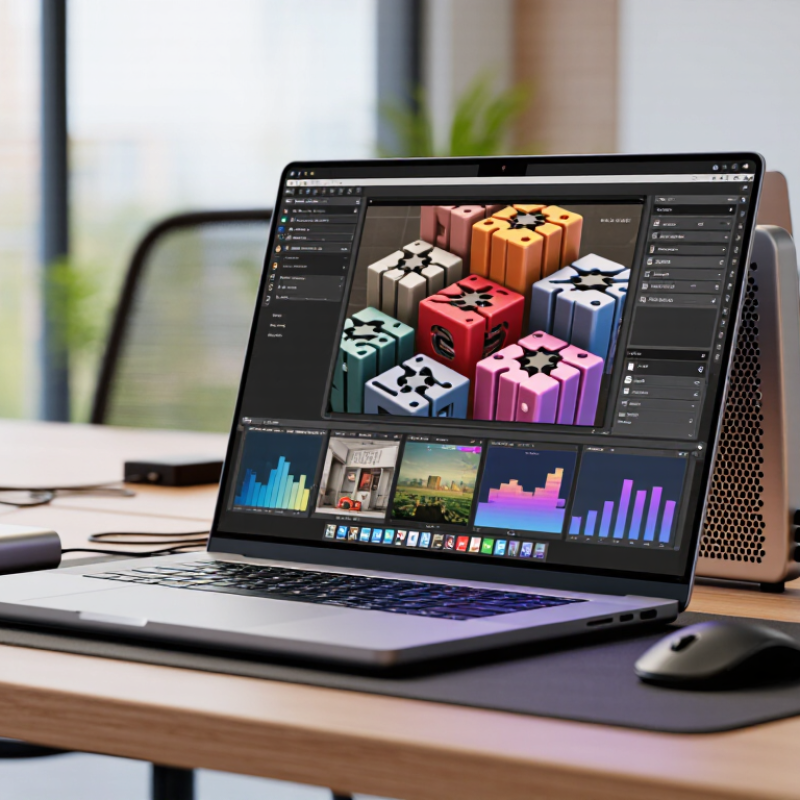
A mobile workstation is a portable computer designed for demanding professional work, not simply a laptop with impressive specifications. It should handle tasks such as 3D modeling, engineering simulation, video editing, or large data projects reliably. That matters. Look for a capable processor, a professional graphics option when your software benefits from one, and enough memory for real project files. Some systems offer application certifications or error-correcting memory; these are useful in specific workflows, but not universal requirements.
Performance must hold up away from a desk. A thin machine may run quickly for a short burst, then slow down as heat builds during a long render. Check independent sustained-load tests, not just peak-speed figures. Battery life, fan noise, weight, and screen quality also shape daily use. A bright display helps when reviewing designs under office lighting, while sturdy hinges matter when the computer travels between job sites.
Start with your actual software and typical workload. A designer working with detailed assemblies may need more graphics memory than someone editing documents and occasional photos. Confirm memory and storage can meet your needs, since upgrades may be limited. Ports matter, too: connecting an external display or transferring files should not require a pouch of adapters. There is no perfect cutoff. I would still question any specification list that promises workstation performance without explaining cooling, drivers, or sustained results.
Match Workstation Capabilities to Your Workload
A mobile workstation should fit the work you actually do, not an impressive specification sheet. Start with the task. For large CAD assemblies, prioritize strong processor performance, certified graphics, and enough memory to rotate detailed models without stutter. For 3D rendering or local AI, a capable GPU and its memory matter more. Video editors should check hardware codec support, fast storage, and screen color accuracy. A useful test: open a typical project, scrub the timeline, and export a short section before choosing.
IDC forecast that AI-capable PCs would reach nearly 50 million shipments in 2024 and 167 million by 2027, close to 60% of PC shipments. That forecast signals growing interest, not a reason for every user to buy an AI-focused machine. Match the configuration to software requirements and measured benchmarks, such as SPECworkstation results for relevant applications. Bigger numbers can still disappoint.
Thermals matter, too. A thin system may slow during a long render, even if its peak processor speed looks excellent. Check sustained performance, fan noise, port selection, and whether the power adapter is practical for your commute. I would also leave memory headroom for the next project; estimating that need is imperfect. A little restraint helps: paying for unused graphics power will not fix a slow workflow or a cramped display.
Compare Processors, Graphics, Memory, and Storage
How to Choose the Best Mobile Workstation in 2026
A mobile workstation should match the work, not just boast a fast processor. For CAD, simulation, or code builds, compare sustained performance under load; thin laptops can slow down when heat builds. SPECworkstation 4.0 covers seven workload areas, including product development, life sciences, and AI/ML. Its range is a useful reminder: benchmark results matter most when they resemble your actual projects. Ask for tests using similar files and applications.
Graphics memory matters when scenes, models, or video timelines grow. Check both the GPU’s application support and its dedicated memory; a high core count alone can mislead. For memory, 32 GB is a practical starting point for many professional workflows, while large simulations or virtual machines may need 64 GB or more. Check whether memory is upgradeable. Small detail, big consequence. Storage affects more than load times: a 1 TB drive can fill quickly when project files include raw footage, local datasets, and backups. Choose fast solid-state storage, then consider where active files will live. I would still leave headroom; estimating project growth is easy to get wrong.
Evaluate Display, Battery Life, Ports, and Durability
How to Choose the Best Mobile Workstation in 2026
Start with the display you will use all day. A matte panel can reduce reflections under office lights, while higher resolution helps with detailed drawings and spreadsheets. Check brightness in nits and test readability near a window, not just in a dark showroom. Battery claims need context: compare independent tests that include Wi-Fi, video calls, and sustained workloads. The 2023 Work Trend Index surveyed 31,000 workers across 31 markets; 64% said they struggled to find enough time and energy for work. A battery that lasts through meetings matters. There is no perfect setup: a brighter screen can shorten unplugged work time.
Ports determine whether your workstation stays portable or needs a bag of adapters. Match its USB-C and USB-A ports to your drives and accessories, and check whether USB-C supports charging and external displays. For durability, look for published drop, vibration, and temperature test details. MIL-STD-810H describes environmental testing methods, but a claimed test does not guarantee every device survives daily knocks.
Tips: Run a real workload unplugged for an hour. Note the brightness, battery percentage, and fan noise. Check hinge movement and port fit, too. Small details count. A slightly heavier machine may be the wiser choice if its chassis and hinges feel more dependable.
How to Choose the Best Mobile Workstation in 2026 - Evaluate Display, Battery Life, Ports, and Durability
| Workload | Display to Look For | Battery-Life Target | Useful Ports | Durability and Mobility |
|---|---|---|---|---|
| CAD, engineering, and 3D design | 15–16-inch IPS or OLED; 2560 × 1600 or higher; at least 400 nits; wide color gamut is useful for visual work. | Aim for 6–8 hours of light productivity away from an outlet; demanding rendering can reduce runtime substantially. | USB-C with charging and display output, USB-A for peripherals, HDMI, and an SD-card reader if the workflow needs one. | Prefer a rigid chassis, a well-supported hinge, and a serviceable design. Check the configured weight before frequent travel. |
| Video editing and color work | 15–16-inch, 2560 × 1600 or higher; broad color coverage such as 100% sRGB; verify measured color accuracy when critical. | Look for 7–10 hours in light-use testing; video export and high screen brightness generally shorten battery life. | Thunderbolt or USB4, HDMI, and an SD or microSD reader; confirm the port supports the required display resolution and refresh rate. | A firm display lid and reliable cooling matter for mobile editing. A tested color profile is more useful than a resolution claim alone. |
| Software development and data analysis | 14–16-inch, 1920 × 1200 or higher; a 16:10 aspect ratio provides extra vertical workspace; matte finish can reduce reflections. | Target 8–12 hours for mixed productivity, using independent battery tests that resemble your typical workload. | At least two USB-C ports, one or more USB-A ports, HDMI, and Ethernet or a compatible USB-C adapter for wired networks. | Check keyboard comfort, hinge stability, and whether memory and storage are upgradeable. A lighter configuration is easier to carry daily. |
| Field work and frequent travel | 14–15-inch, 1920 × 1200 or higher; around 400 nits or more helps in bright settings, though direct sunlight can still limit visibility. | Aim for 10 hours or more in comparable light-use testing; check battery capacity and charging options alongside runtime. | USB-C charging, USB-A, HDMI, and an optional Ethernet connection; confirm that the included charger meets travel requirements. | Look for a sturdy chassis and documented testing against recognized durability standards. Such testing does not make a device damage-proof. |
| Portable workstation for mixed use | 14–16-inch, 1920 × 1200 or higher; prioritize comfortable scaling, adequate brightness, and a finish suited to your working environment. | A practical target is 8 hours or more of light productivity; compare independent test results rather than relying only on manufacturer estimates. | Choose ports for the devices you use regularly; USB-C with charging, USB-A, and HDMI cover many common setups. | Balance chassis strength, repairability, weight, and warranty coverage. Check the complete system weight, including the power adapter. |
Battery-life figures are practical selection targets, not guarantees. Actual runtime varies with screen brightness, applications, wireless use, battery age, and system configuration. Port capabilities and durability-test coverage should be verified for the exact configuration.
Check Software Certification, Support, and Total Cost
A mobile workstation should match the software you use, not just look powerful on a specification sheet. Check the software developer’s certification list for the exact operating system, graphics hardware, and application version. A certification for an older release may not cover your current workflow. Ask the seller or manufacturer to confirm compatibility in writing, especially if you rely on specialist plug-ins or external displays. A logo alone is not enough.
Tips: Before buying, ask how long repairs usually take, whether loan units are available, and which parts are covered. Check warranty length, battery coverage, and local service options. Keep the receipt. Small details matter.
Compare total cost over several years, not only the purchase price. Include memory or storage upgrades, a compatible dock, extended support, and likely battery replacement. Estimate the cost of a workday lost to repair delays, too. A cheaper system can become expensive if it cannot run your main application reliably. Yet forecasts are imperfect; workloads change, and resale value is hard to predict. A simple spreadsheet with purchase, support, and downtime estimates can expose assumptions before you commit.
